
Using IP Cameras with Ignition Perspective
A while back we worked with Opto 22 to integrate an IP camera into their conference booth as a fun novelty showing off some of the power of using their hardware with Ignition’s Perspective framework. You can check out our post on their site about that project here.
Since then we have had many requests to integrate IP cameras into Perspective projects at manufacturing facilities. We also found more recent firmware revisions of the Amcrest Camera platform we standardized on have removed the original authentication methods we used on the booth cam. Everything still functions, we simply found you might encounter a login prompt when opening the Perspective view requiring a username and password to pull up the camera feed.
Digging in a bit deeper we figured out a solution to remove the login prompts using Node-RED, which runs on Opto 22’s groov EPIC and RIO hardware.
Authentication Changes
In previous firmware versions you could access the camera’s MJPEG Stream using “Basic Authentication” and include the username and password in your URL. Obviously from a security perspective this isn’t ideal, however 99% of the use cases for this approach are contained within a company’s local network so not a huge risk overall.
To wire this up we simply passed in the URL to the camera’s MJPEG stream to an Inline Frame Component in Perspective and were off to the races. The URL format was http://192.168.1.248/cgi-bin/mjpg/video.cgi?channel=1&subtype=1&user=admin&password=password1
In later firmware revisions they removed basic authentication in favor of the “Digest Authentication” method which is arguably more secure, however it broke our previous approach.
Access the Stream in Node-RED
First you need to enable the MJPEG stream in the camera. For the Amcrest camera we are using we use the following steps:
Open a web browser (Internet Explorer, Chrome, or Firefox) and log into your camera using its IP address.
Click on Setup (gear icon) at the top right corner of the screen.
Navigate to Camera > Video.
Under the Stream Mode, select Substream (or Extra Stream).
Change the Encode Mode to MJPEG (or Motion JPEG).
Adjust the resolution and frame rate as needed (usually VGA/640x480 at 10fps for MJPEG).
Click Save to apply the changes.
To get around this we can use Node-RED along with some HTTP nodes to read the camera’s feed in Node-RED and expose an endpoint to Perspective from Node-RED directly.
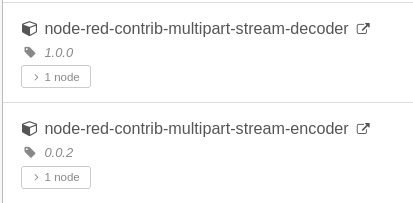
First we need to install the node-red-contrib-multipart-stream-decoder and node-red-contrib-multipart-stream-encoder packages.
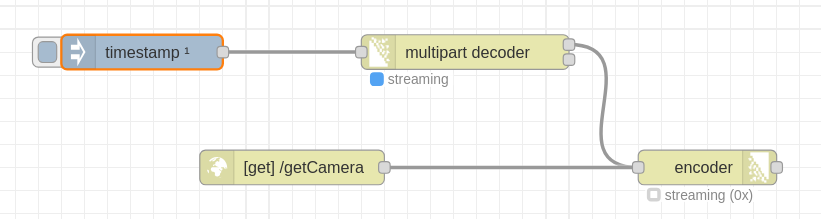
Next we set up our flow. This includes a timestamp with “Inject Once” checked, going into the multipart decoder node pointed to our camera. The top output of that goes into an encoder node, and an http in node also goes into the encoder node’s input. This provides the endpoint we will use in Perspective.
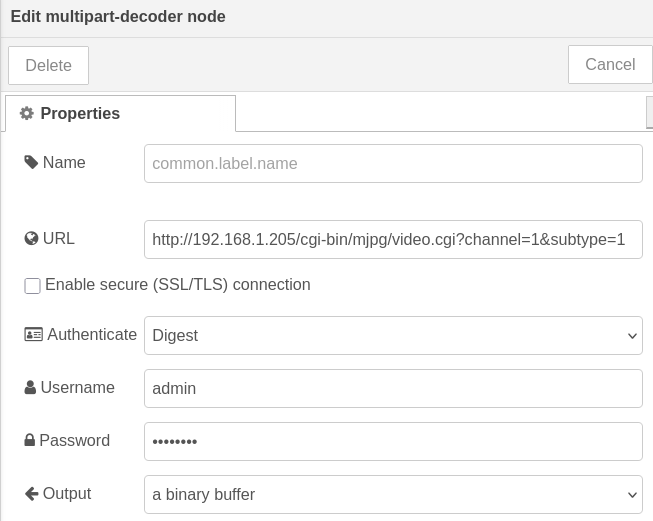
For the decoder node we pass in the camera’s URL to the MJPEG stream, select Digest for authentication and enter our username and password then select Binary Buffer for our output.
The encoder node just uses the defaults so no additional configuration required there.
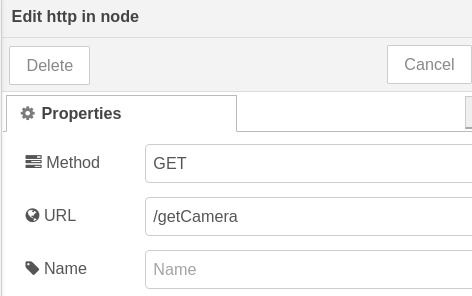
Finally we set up our http in node with the URL path we want to use in Perspective. In this case /getCamera
We then go to Perspective, add in an Inline Frame component and point it to our Node-RED endpoint, in this case running on 192.168.1.159:1880:
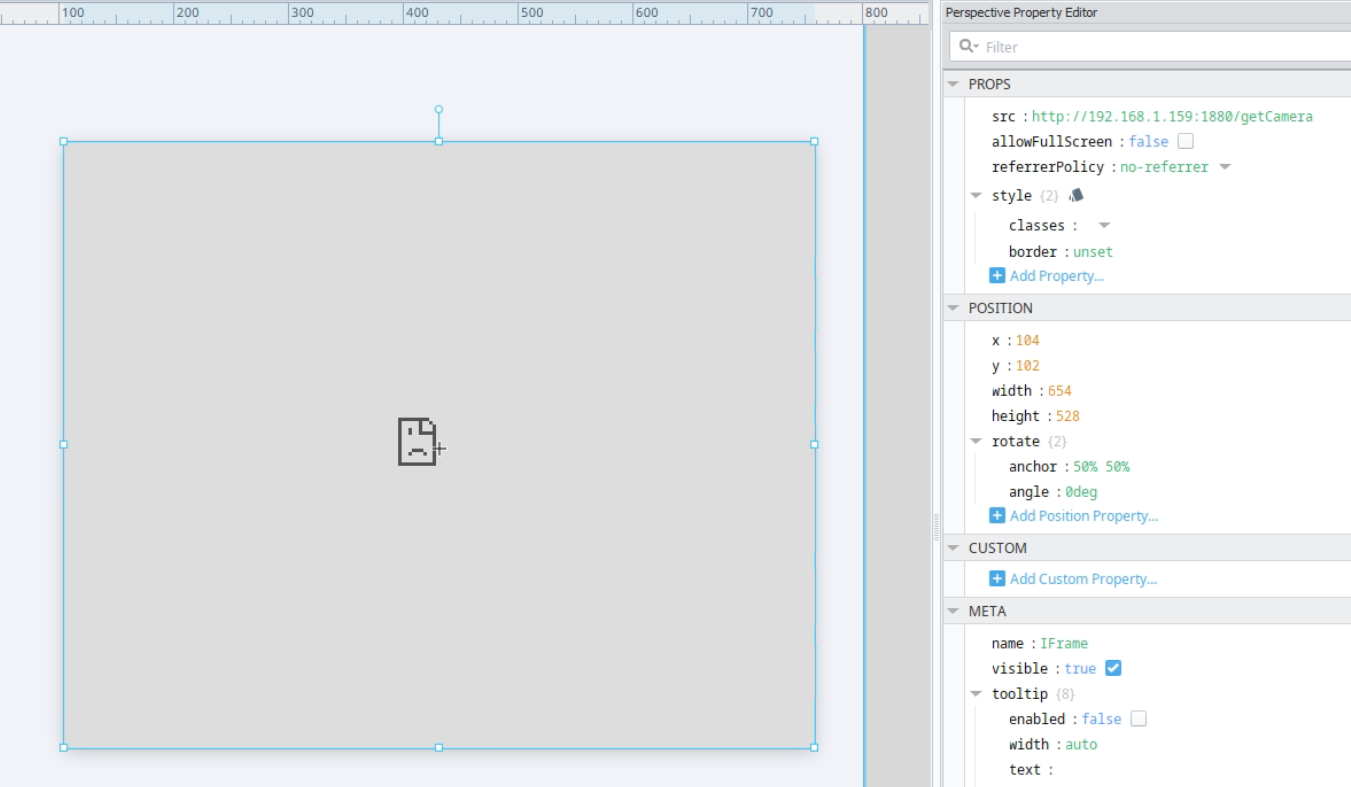
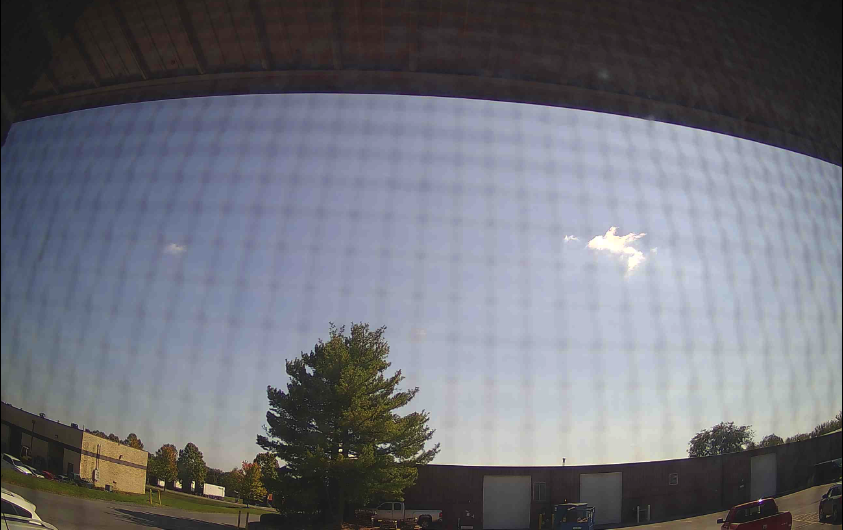
From here we map our view to a URL in Perspective and pull it up in a browser and we are good to go!
HD Stream Options
The above method is the “easy” mode option although the image quality is degraded from the HD stream available on the camera.
If you want to get the full power of the camera set up in Ignition there is a little bit more work to do, although it is entirely possible with the same tools!
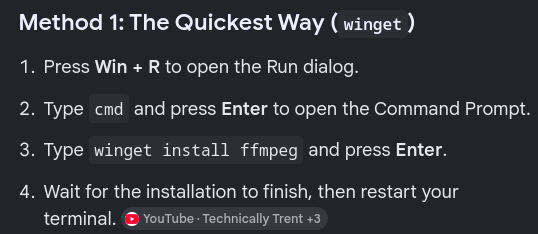
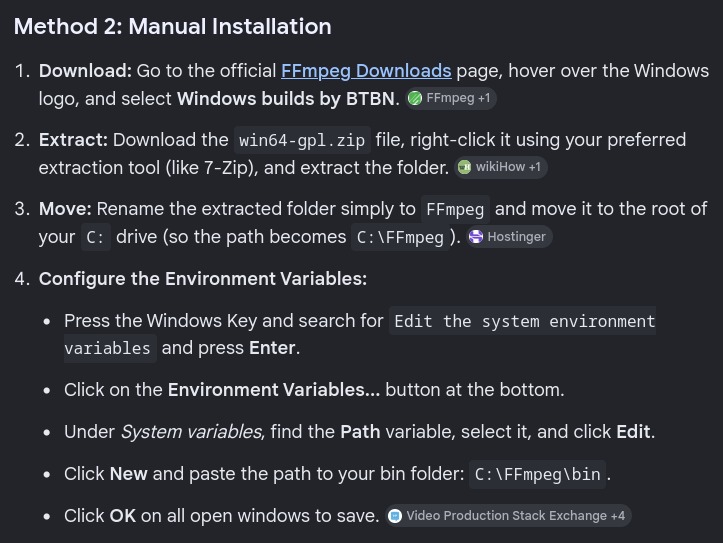
First you will want to install the ffmpeg library on your machine. On windows you have a couple of options, and Linux is easy with the command line.
For Windows:
On Linux:
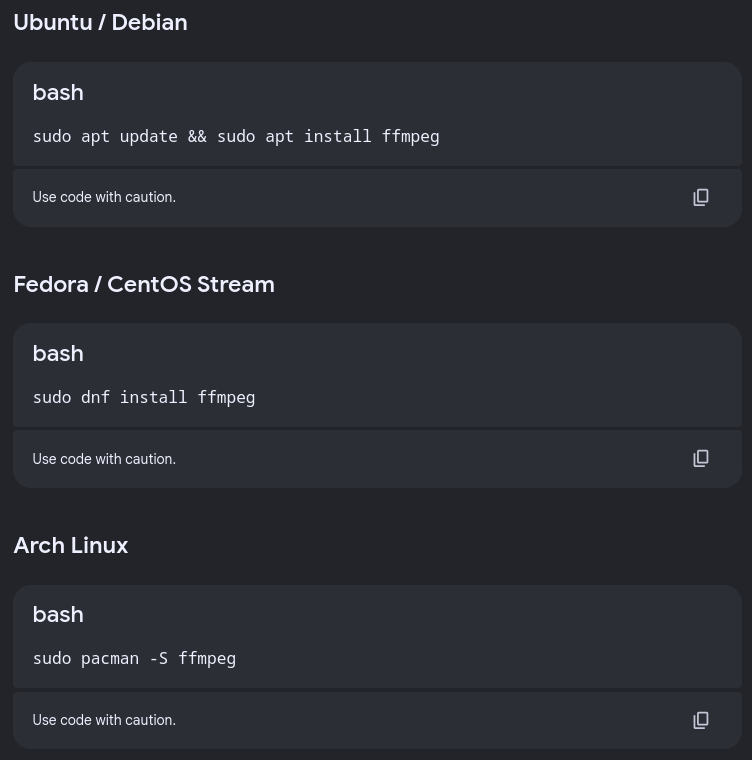
Then you will install the node-red-rtsp-to-mjpeg package in Node-RED.
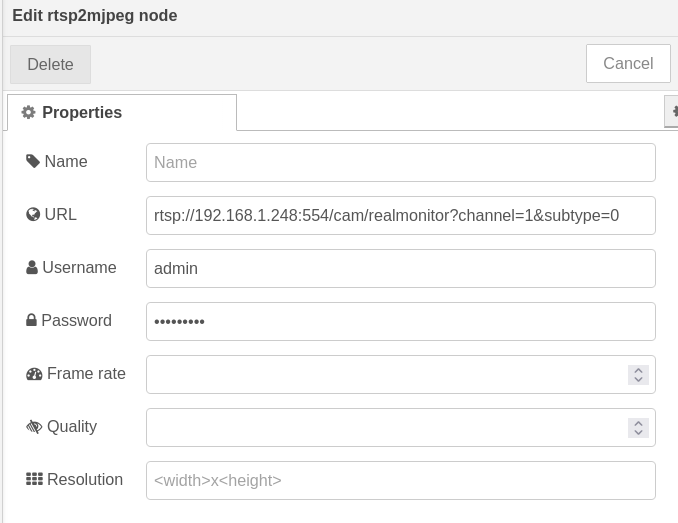
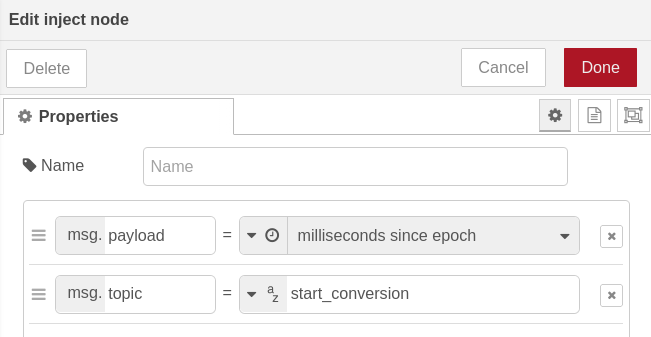
From there go into your flow, delete the decoder node from the example above, and put in a rtsp2mjpeg node, and set it up with the camera’s rtsp stream URL. Pipe this to the encoder node, and add start_conversion as the msg.topic on your inject node, deploy and you should now see the HD stream available on the same URL used above!
The new flow:

rtsp2mjpeg Node settings:
Inject node settings:
Wrapping Up
While the older method using basic authentication wasn’t the most secure option available it was extremely quick to set up completely from scratch.
Figuring out this approach took a couple of hours of digging into forums and documentation to understand the best path forward. It is definitely more secure by removing the authentication from the Perspective view, although it does add a few moving pieces to the mix.
If you would like help integrating IP cameras with your Ignition system please reach out and let us know!